Sequences
Cold Email Personalization Variables: How to Handle Missing Data
Use first name, company and custom fields without sending “Hi ,”: write sentences that survive empty values and check variable coverage before launch.
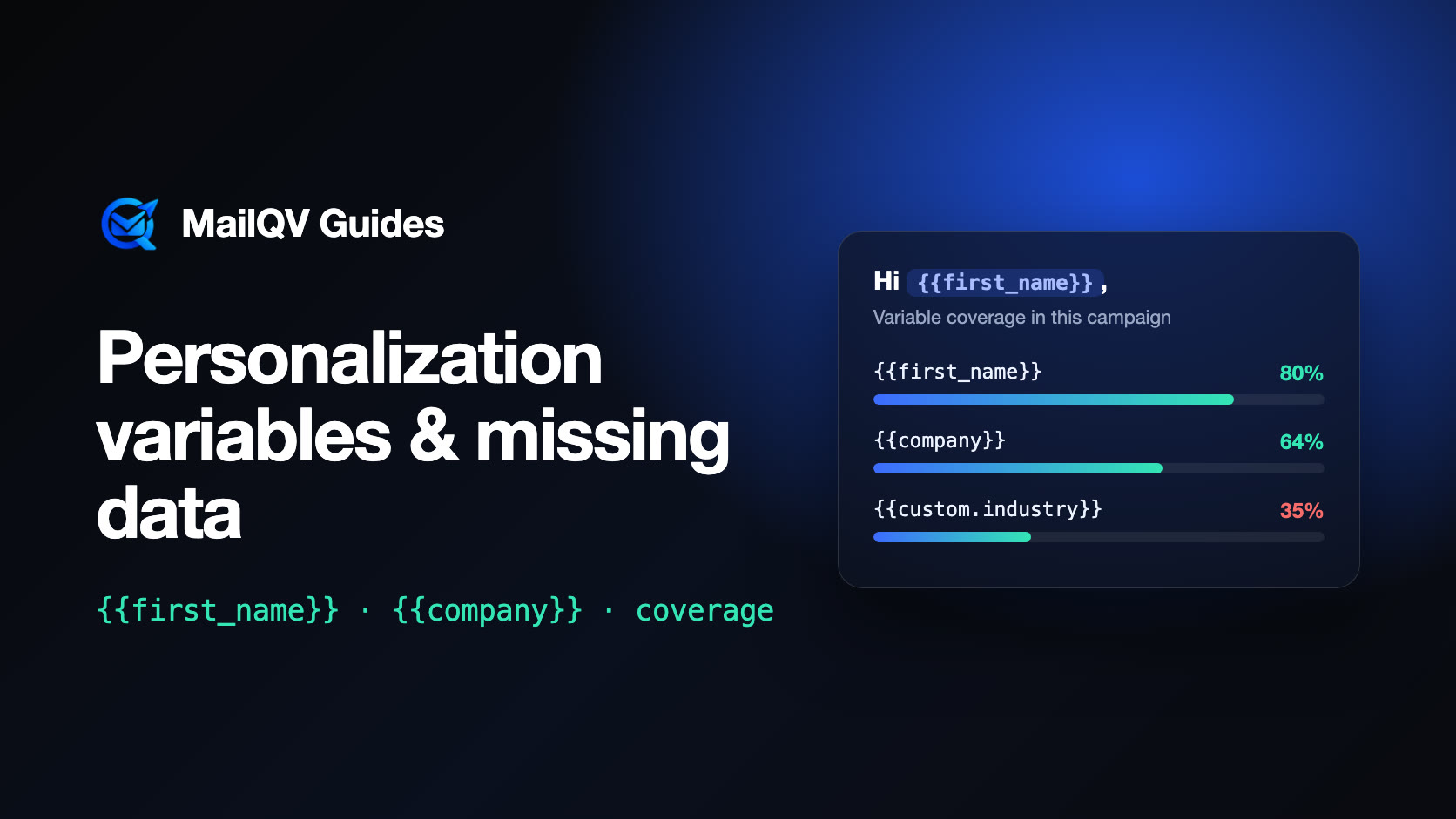
Personalization variables such as {{first_name}} and {{company}} are replaced with each contact’s data when the email is sent. When a field is empty, the variable becomes empty too. Write every sentence so it reads naturally with or without the value, check how many contacts actually have each field before launching, and keep variables out of places where an empty value breaks the sentence.
How variables work
A variable is a placeholder in the subject or body. At send time it is replaced with the matching value from the contact record: first name, company, or a custom column you imported, such as {{custom.industry}}. One template produces a different email for each contact.
The missing-data problem
Real lists are incomplete. If 80 of 100 contacts have a first name, the other 20 receive the template with that value removed. “Hi {{first_name}},” becomes “Hi ,” and “I noticed {{company}} is hiring” becomes “I noticed is hiring”.
- Greetings are the most common place for broken output.
- Subject lines with an empty variable look truncated.
- Custom fields from scraped or enriched data are usually the least complete.
Write sentences that survive empty values
The safest fix is in the data and the wording, not in clever template syntax.
- Split the list: send contacts with the field and contacts without it as separate campaigns with different copy.
- Fill gaps before importing: an empty first name filled with “there” turns “Hi {{first_name}},” into “Hi there,”.
- Keep subject lines free of variables unless the field is complete.
- Never put a variable where an empty value changes the meaning of the sentence.
Check coverage before launch
Before a campaign starts, look at how many contacts have a value for each variable you used. Full coverage means the variable is safe anywhere; 60% means four in ten emails go out with that part empty.
Then preview the email for a contact with missing data, not only for your most complete record.
Personalization that is worth it
Name and company show that the email is not anonymous, but they do not show relevance. One specific line about the prospect’s situation—their industry, a recent change, a problem common to their role—does more than three merged fields. Custom columns let you carry that research into a template at scale.
Variables in MailQV
MailQV supports {{first_name}}, {{last_name}}, {{company}} and {{email}}, plus any imported column as {{custom.column_name}}. The editor highlights variables and shows how many contacts in the campaign have each one filled in, and the AI writer works with the variables your contacts actually have.
Empty values are sent as empty, so the coverage check is where you decide whether a variable stays.
Frequently asked questions
What happens if a contact has no first name?
The variable is replaced with nothing, so “Hi {{first_name}},” becomes “Hi ,”. Fill the field, split the list or change the wording before launch.
How many variables should a cold email use?
As many as stay accurate. One or two reliable variables plus one specific, researched line usually beat many merged fields with gaps.
Put it into practice
Run measured outreach with mailbox-level control.
MailQV connects sender rotation, sequences, contacts and campaign signals without claiming guaranteed inbox placement.